
NHL.TV is sold on DAZN as a hockey pass in eligible international markets. You do not need a full DAZN sports subscription just to buy NHL.TV, but you do need the right country offer and an active hockey entitlement. This guide focuses on choosing, setting up and managing that purchase. Details were checked on October 11, 2026; your local checkout and account terms control the plan you buy.
Check NHL.TV availability in your country first
NHL.TV on DAZN is an international hockey subscription, so your first question should be whether the product is sold for the country where you live and watch. Do not assume a DAZN account created for another sport automatically gives you the NHL offer. Open the country-specific hockey page, confirm the country and currency, and inspect the pass available to your account.
Use the NHL's current country information and DAZN's local offer together. Country lists can change and an old search result can lead to a previous season's page. If the two sources disagree for your location, ask DAZN to confirm your eligibility before purchasing. A successful account registration is not the same as a confirmed hockey entitlement.
Availability and live-game restrictions are different questions. The NHL's current information page names Austria, Germany, Switzerland and the United Kingdom for partner-network live blackouts. A pass can therefore be available in your country while a particular live broadcast has a restriction. Read the notice attached to the game rather than interpreting an unavailable tile as proof that the entire subscription is broken.
For U.S. and Canadian viewing, do not buy from an international landing page merely because it appears in search. Those markets have their own hockey viewing routes. Our broader NHL viewing guide helps you identify the appropriate market. A country-specific product and its price should match the place where you intend to use it.
Before traveling, check the destination as well as your home country. A subscription can remain active while playback rules change with location. Save the current travel instructions, but do not expect a paid account to override territorial rights. If you need access for one important game while away, establish the authorized route before you leave rather than waiting until the broadcast starts.
Keep the currency and billing country visible throughout checkout. A converted price from another market is only an arithmetic comparison, not an available offer. Taxes, payment methods and plan terms can differ. The useful result of this first check is a clear statement: NHL.TV is offered for my account and location, I understand that live restrictions can apply, and I know which local checkout to use.
If you are buying for a particular team, check a forthcoming matchup before paying. Read its live availability note for your location and distinguish that from any replay option. A season purchase is easier to judge when you have tested the offer against the team and viewing time that matter to you.
Choose the NHL.TV pass you actually need
Choose two things separately: the hockey tier and the payment period. A tier controls the features offered with the pass. A billing period controls how and when you pay. Keeping those choices separate makes it easier to compare a Standard season pass with a Standard monthly offer, then decide whether Ultimate features add enough value for your household.
You do not need a full DAZN sports subscription
DAZN's NHL.TV subscription instructions say the hockey pass can be purchased independently of a full DAZN subscription. You still use a DAZN account and its viewing platform. The account identifies you; the NHL.TV pass supplies the hockey entitlement. Other sports subscriptions are separate purchases unless your displayed offer explicitly combines them.
For an existing DAZN customer, inspect the account's active products before adding anything. If NHL.TV is already active, test the hockey content and check the next billing date. If it is not active, choose the hockey offer rather than upgrading an unrelated product by assumption. Save the confirmation that names NHL.TV so you can later identify the purchase without relying on memory.
Compare Standard, Ultimate and the billing period
DAZN's October 1 country-pricing article for 2026-27 lists the following UK examples. Other markets use their own currency and offers. Check the official country price guide and your final checkout before authorizing payment.
| UK example checked October 11 | Standard | Ultimate |
|---|---|---|
| Upfront season pass | GBP 119.99 | GBP 139.99 |
| Monthly Flex | GBP 22.99 per month | GBP 27.99 per month |
A monthly offer can suit a fan who plans a shorter period of paid viewing. An upfront season pass can suit someone who expects to use the product throughout the covered season. Compare the exact coverage dates and renewal terms, rather than assuming the words season and annual describe identical periods. An installment offer, if shown, should also be distinguished from a rolling monthly membership.
For a simple cost check, multiply the monthly amount by the months you expect to pay and compare it with the season price. Then ask whether you value the flexibility enough to choose monthly billing. The calculation cannot decide for you: travel, work schedules and how often you watch can matter as much as the equivalent monthly cost.
Ultimate should be evaluated around features you will use, especially additional simultaneous streams and Multiview. If you mainly watch one game on one screen, start by comparing that need with Standard. If several household screens are important, inspect the Ultimate terms and device support. Do not add an expired merchandise coupon to the value calculation; use only benefits and dates that the current offer actually confirms.
For the UK examples above, six paid months of Standard at GBP 22.99 would total GBP 137.94, while the listed upfront season price is GBP 119.99. That is a calculation using the displayed figures, not a promise about your billing schedule. Decide which months and coverage dates apply to your own offer before using the comparison.
Set up your account and viewing device
Complete account setup on a screen where you can comfortably read the plan and payment details. Then sign in on the television, streaming player or mobile device you intend to use for hockey. Purchasing on a computer and watching on a television are two parts of the same setup: the viewing device needs the account that holds the NHL.TV pass.
DAZN's supported-device guide lists televisions, streaming players, mobile devices, computers and consoles. Follow the instructions for your exact model. A familiar brand name does not guarantee that every television generation has the same app or supports every feature. Confirm compatibility before deciding you need new equipment.
Install the official DAZN app using the device's normal app store or the provider's instructions. After signing in, inspect the active account products and open the NHL area. If it asks you to purchase again, compare the account email on the television with the confirmation email from checkout. An account mismatch can look like a missing subscription even when another account already has a paid pass.
For accounts created with Google or Apple, DAZN has separate television sign-in instructions. Apple's Hide My Email can attach a private relay address to the account. Check the email displayed in My Account rather than guessing that the subscription must use your everyday inbox. These are account-login instructions, not a claim that NHL.TV is available in the United States.
Returning NHL.TV subscribers
If you used the older NHL.TV service, start by finding the account and any current renewal confirmation. Do not assume an old password, an old price or a historical migration email describes your present entitlement. Sign in through the current DAZN route and inspect the named subscription, payment record and billing date. If account recovery is needed, use the official help process before creating another paid account.
DAZN's email-recovery instructions suggest checking previous confirmation messages and saved login information. If you no longer have access to the registered email, contact official support. Keep the relevant purchase confirmation available, and explain whether you are recovering an account or questioning an active charge; those are different requests.
Once the account is right, test a playable hockey item on the main screen. Check audio, picture and remote navigation, then use today's NHL schedule to plan the next live broadcast. Finish the setup before a game you care about, so there is time to separate a login issue from a location restriction.
Understand simultaneous streams and travel
A device limit answers how many streams can run at once. A location limit answers where those streams can run. Neither replaces the country and live-game rights checks. Read all three together, particularly if one person watches on the television while another watches on a phone outside the home.
DAZN's NHL.TV help page describes Standard as two simultaneous devices on the same internet IP connection. Ultimate allows five simultaneous devices across two IP addresses. These are the published tier limits checked on October 11, not a promise that any five screens anywhere in the world can watch any game.
For Standard, a television on home Wi-Fi and a phone using mobile data can produce a location problem even though only two screens are involved. Put the phone on the same home connection when testing that household setup. If watching from two separate connections is a regular need, compare Ultimate's terms with your plan before upgrading. An upgrade should solve a confirmed tier limit, not an unidentified playback error.
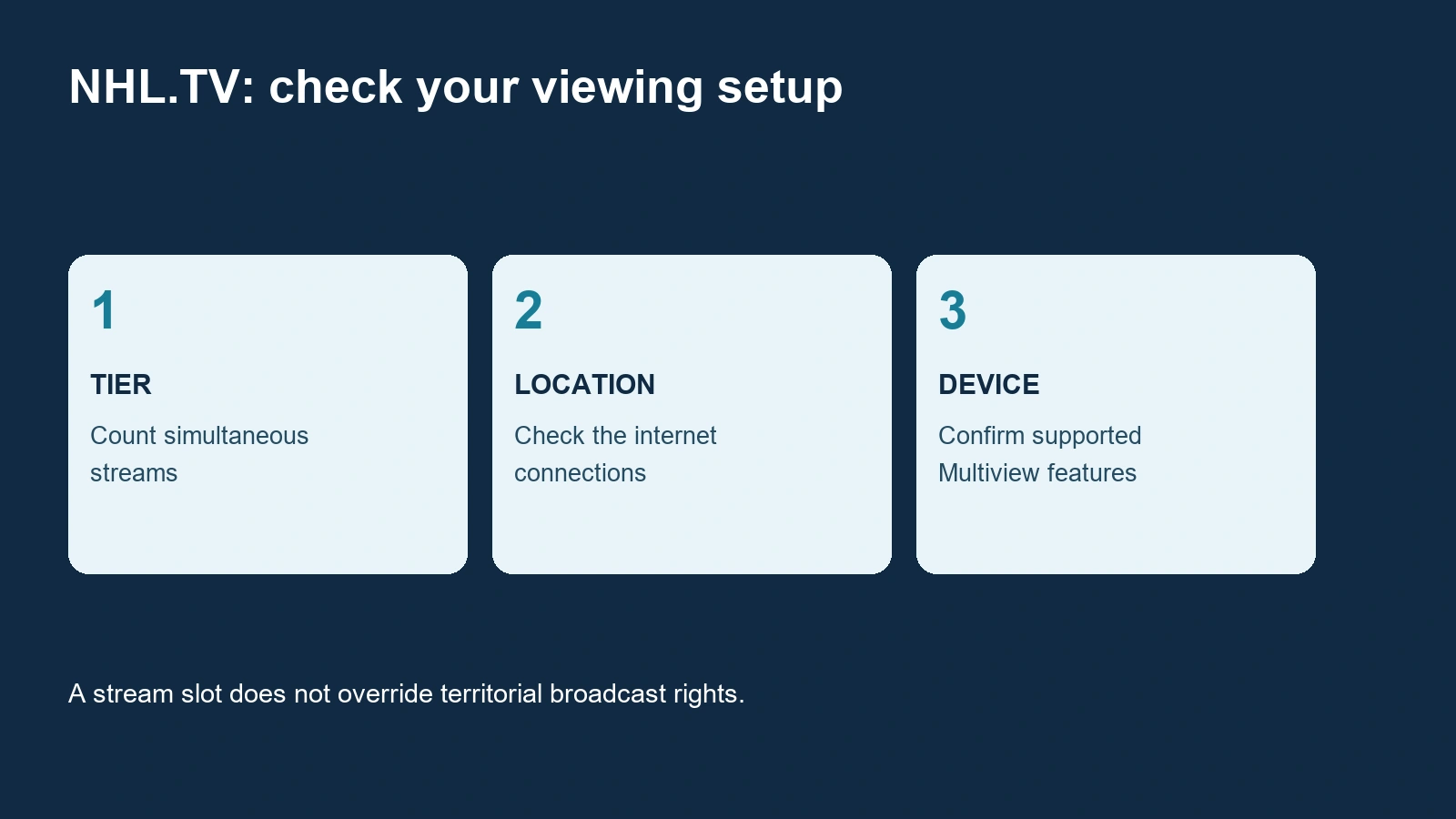
Multiview is a separate feature from using several physical devices. DAZN lists up to four Multiview screens on Apple TV and web, and up to two on iOS and Android mobile devices. Do not assume the same layout is offered on every smart television. Start with the supported screen you own, find the Multiview control during playback, and check which game supplies the audio.
Consider how you actually watch before treating more windows as an automatic benefit. A fan tracking several teams may value a side-by-side view. Someone concentrating on one club may prefer one full-screen feed. For a busy night, use this week's NHL schedule to identify overlapping matchups, then try the arrangement that keeps the puck and score information comfortable to see.
Travel adds another layer. DAZN says NHL.TV access while abroad is available in countries where the product is offered. Check the destination before departure and inspect any live restriction for the desired game. Having an unused stream slot does not establish territorial availability. A hotel connection, a mobile connection and your home network may also present different IP addresses to the service.
If playback reports too many streams, first identify what is still playing on your account and stop sessions you no longer need. If the message instead names a location or a blackout, return to that specific rule. Save the wording before changing devices. Correctly identifying the limit is more useful than buying a higher tier and hoping it fixes every possible restriction.
Manage renewal and cancellation without losing track of your purchase
Keep the NHL.TV pass separate from any other DAZN product in your account. You may want to stop the hockey purchase while keeping another sports subscription, or the reverse. Read the product name on the management screen before making a change. A broad account change can affect more viewing than the single pass you meant to cancel.
Identify who bills your subscription
Start with the latest receipt or billing record. Watching in the DAZN app does not prove that every purchase is billed directly by DAZN, and an old app-store receipt does not prove that a later renewal uses the same route. Match the current charge, subscription name and account email before choosing a cancellation method.
DAZN's NHL.TV management instructions point to the More on DAZN section for the subscription, payment details and billing history. Check the next renewal date there. If your current receipt instead identifies Apple or another billing provider, use that provider's subscription-management route for that purchase.
For an Apple-billed purchase, Apple's cancellation guide explains how to find the subscription and the Apple Account named on its receipt. If it is absent from the account you opened, check the receipt before assuming cancellation is impossible. The right billing account matters as much as the device you use to reach it.
Confirm the end date after cancellation
Read the terms for your exact hockey pass and billing period, then complete the cancellation or renewal-off action shown for that product. DAZN's general cancellation help also discusses other DAZN memberships. Do not apply a general membership's notice period to NHL.TV by assumption. Your pass confirmation should identify the effective end date and any remaining charges.
Save the final confirmation, not just the screen that offered a cancellation button. Check whether the status changed from renewing to ending, what date access is scheduled to stop, and whether an installment obligation remains. Removing the app, signing out or deciding not to watch any more is not a reliable record that the paid subscription has ended.
If the account still shows a renewal you believe you canceled, contact the billing provider with the dated confirmation and product name. Ask it to clarify the status before making another purchase. Treat a refund request as a separate question: cancellation does not by itself establish that a past payment will be returned, and this guide cannot replace the terms attached to your transaction.
Before access ends, decide whether you still need the live service or mainly want to catch up later. Our NHL replay guide covers that different viewing task. Keep a renewal reminder tied to your actual account date, and review next season's offer when it appears rather than assuming today's price and features carry forward unchanged.
Comments
Comments are reviewed before publication. Spam, abusive content and policy-violating links are not published.
Sign in with Google to leave a comment.
Loading comments...